Athena (AWS)#
The Kellogg Data Hosting Athena platform is built on Amazon Athena, a serverless SQL query service. You can query Athena datasets through the AWS web console or from KLC with Python and awswrangler . For R or Stata workflows on KLC, run the Python query, save the result to a file on the cluster, and read that file in your R or Stata script.
To request access to a specific dataset, contact rs@kellogg.northwestern.edu . Access is granted per database, not to the platform as a whole.
Important
Once logged in to AWS, you only have access to Athena. This account does not grant access to any other AWS service.
Choosing an Access Method#
Method |
Best For |
|---|---|
Exploring data, running ad-hoc SQL queries, downloading CSV results |
|
Python queries with awswrangler; R and Stata read the saved query output |
The AWS Console requires no local setup. The KLC path requires a one-time aws configure sso setup; in future sessions, refresh your SSO session with aws sso login (the default session length is 4 hours).
Accessing via the AWS Console#
Prerequisites:
A Northwestern NetID
Access to a specific Athena database already granted by Kellogg Research Support
No local setup or software installation
1. Log in to AWS#
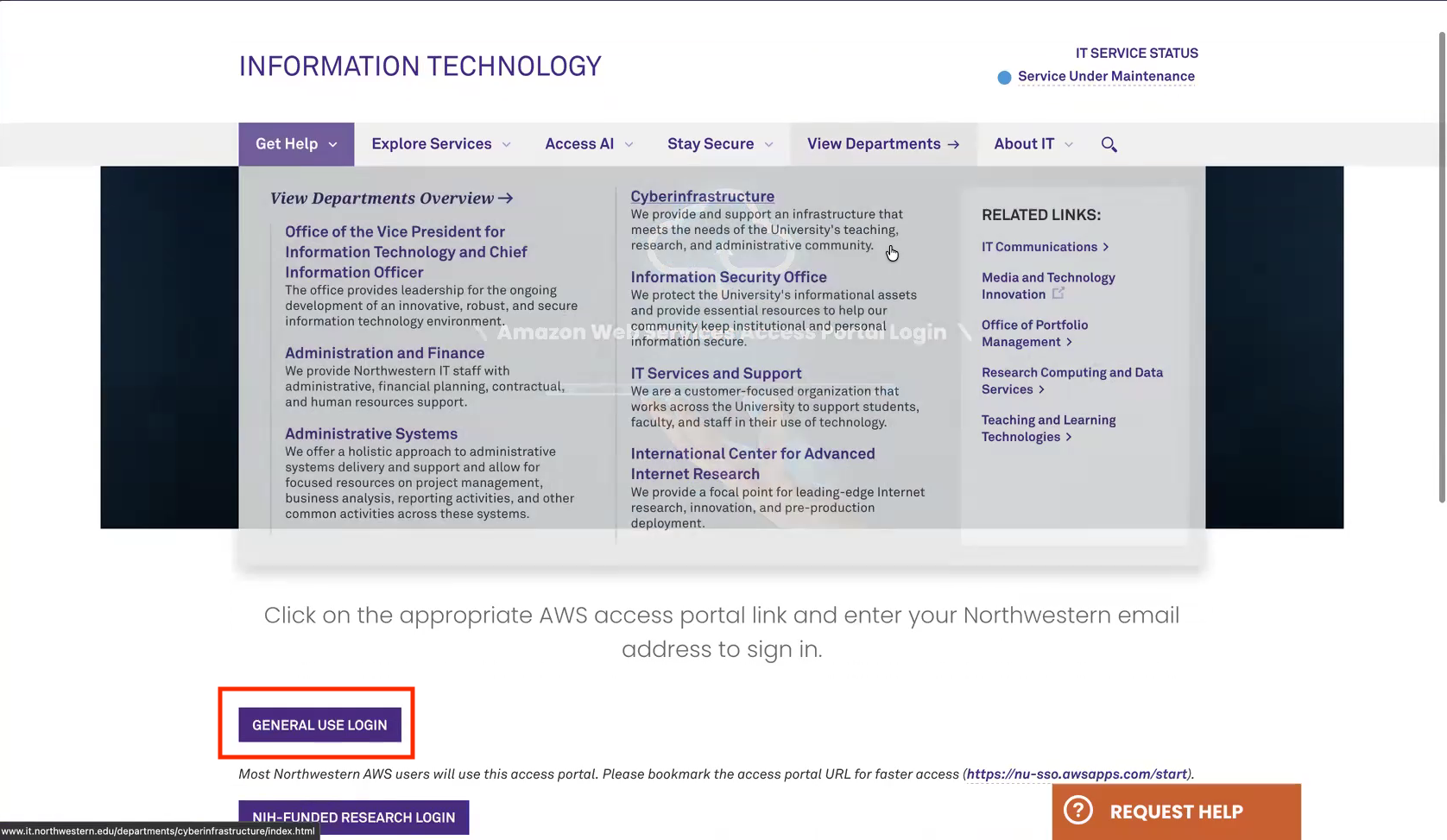
Go to the NUIT AWS login page , click General Use Login, and authenticate with your Northwestern NetID.
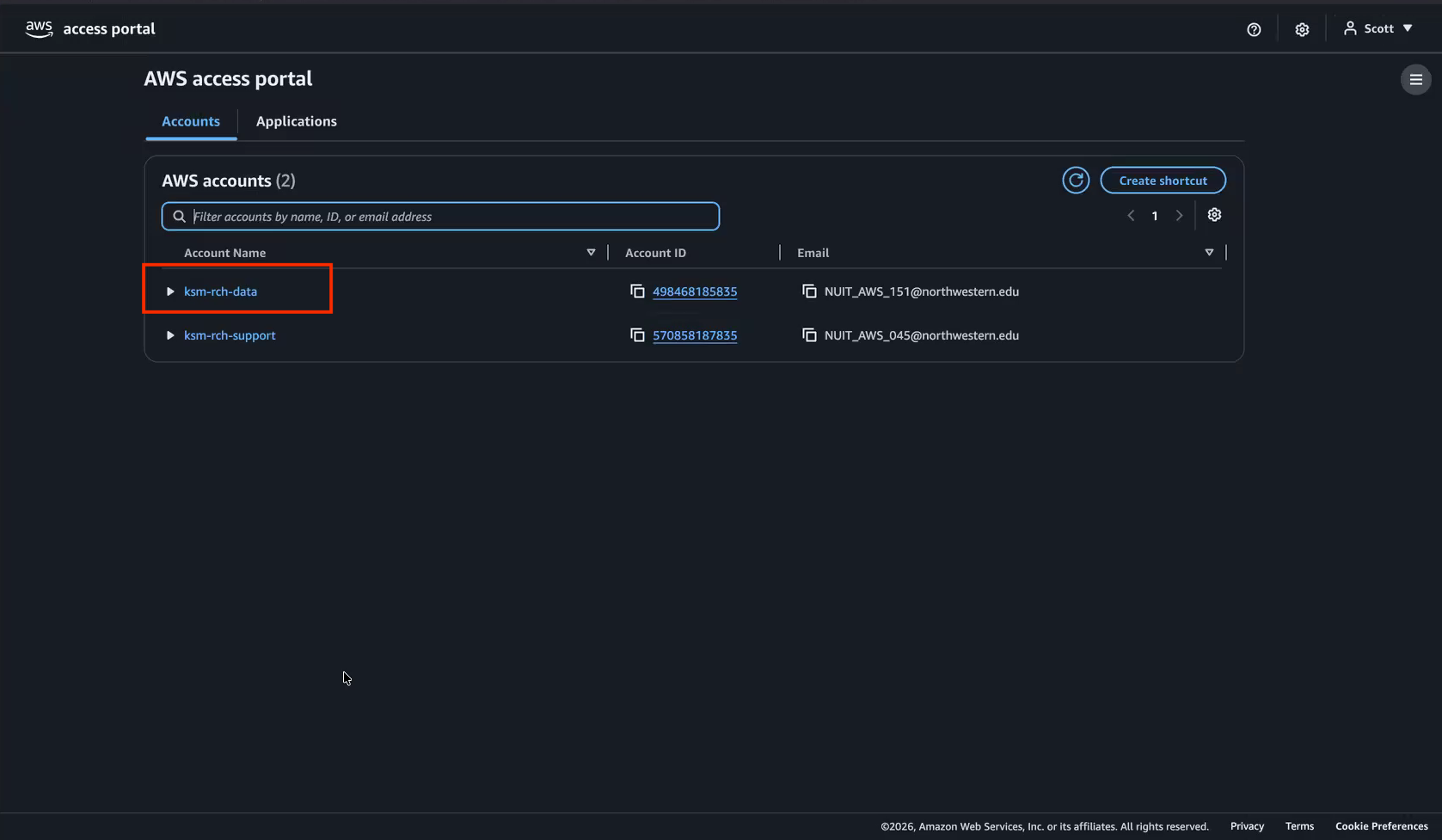
On the AWS access portal, click the arrow next to ksm-rch-data to expand it.
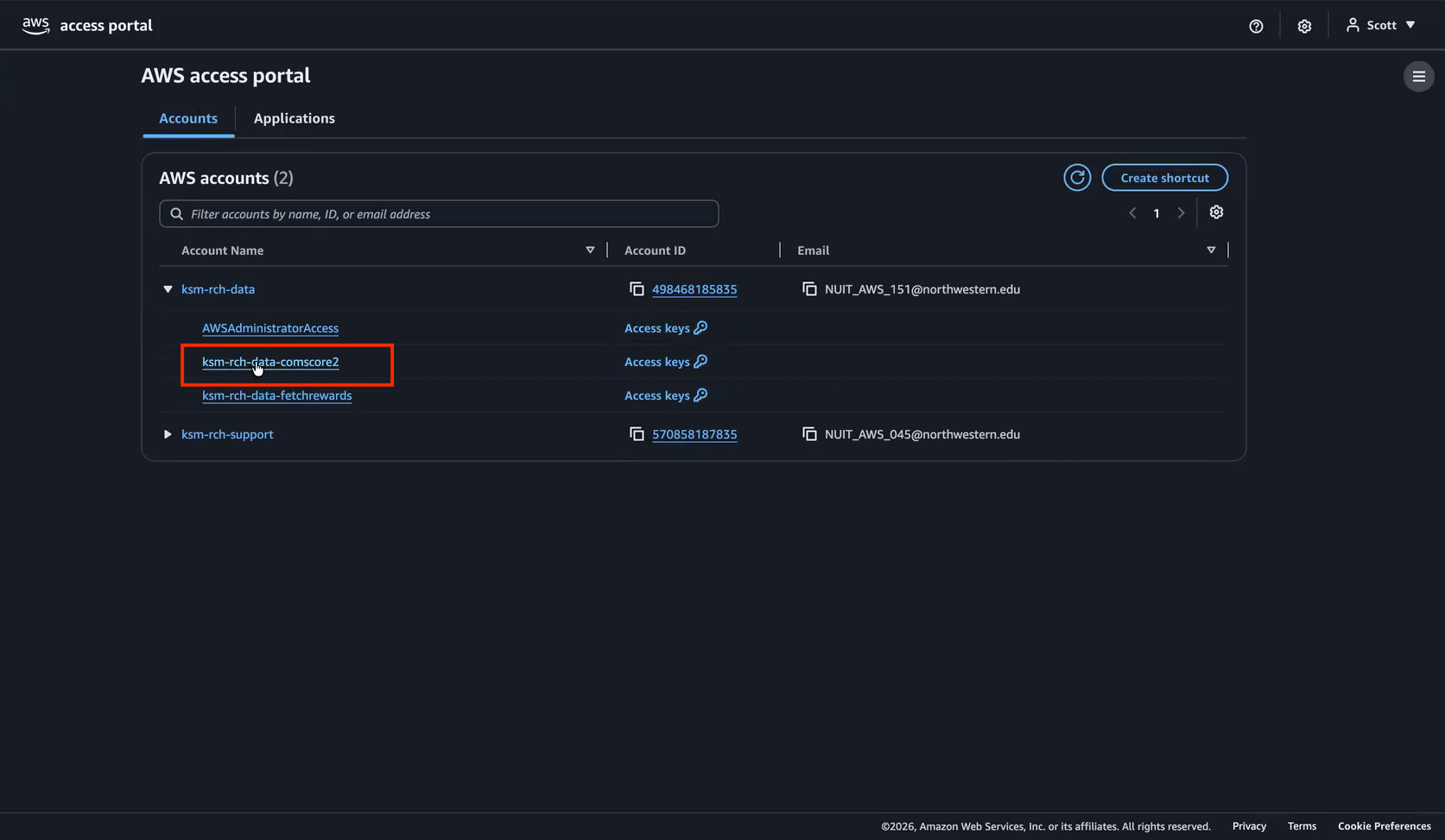
Click Management console next to your database, for example
ksm-rch-data-comscore2.Confirm the Region in the upper right is US East (Ohio) (us-east-2).
Screenshots: Logging In to AWS
1. NUIT AWS login page
2. AWS access portal
3. ksm-rch-data expanded
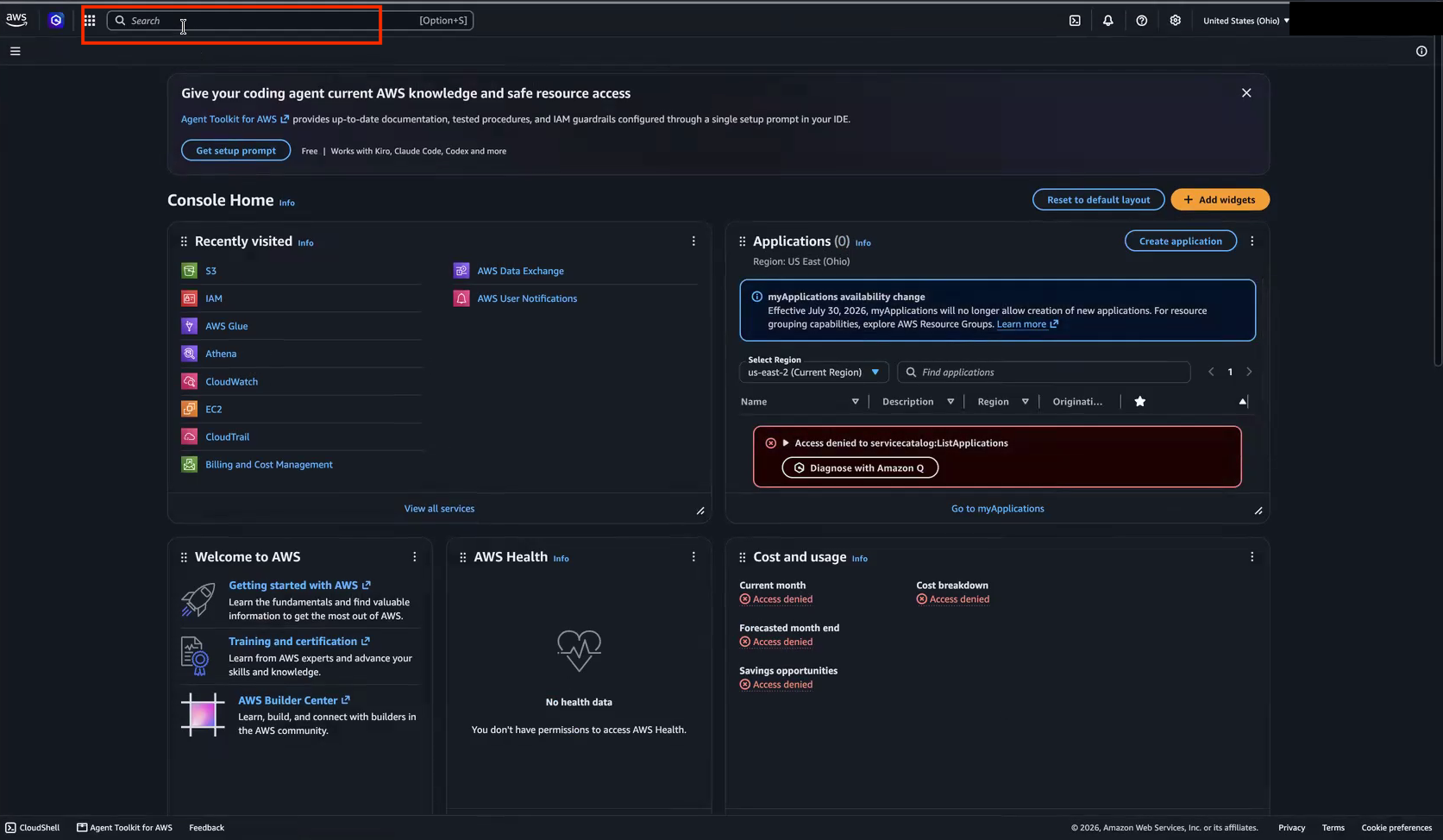
4. AWS Console Home
2. Navigate to Athena#
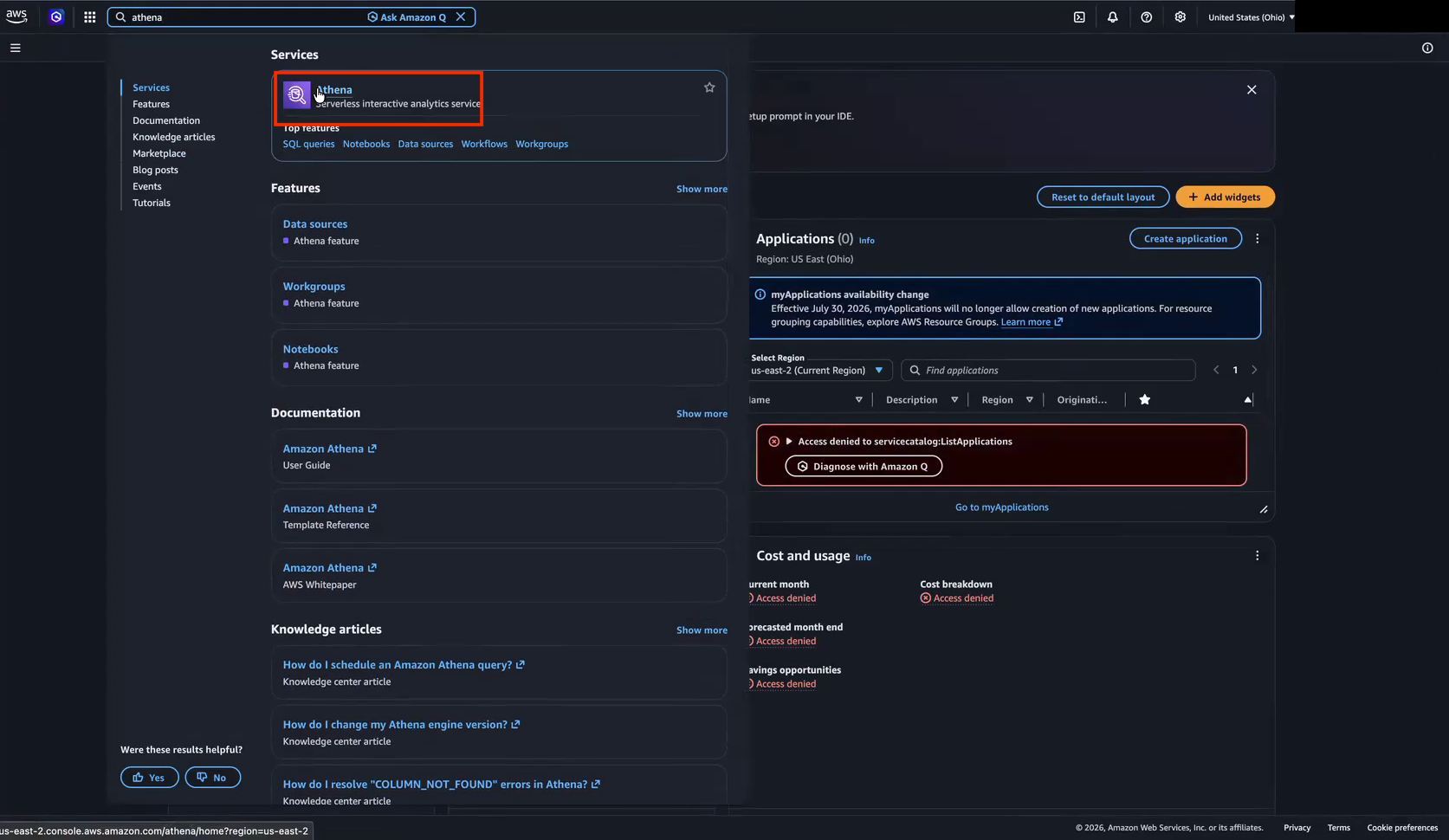
Type Athena in the search bar at the top of the console and select Athena from the results.
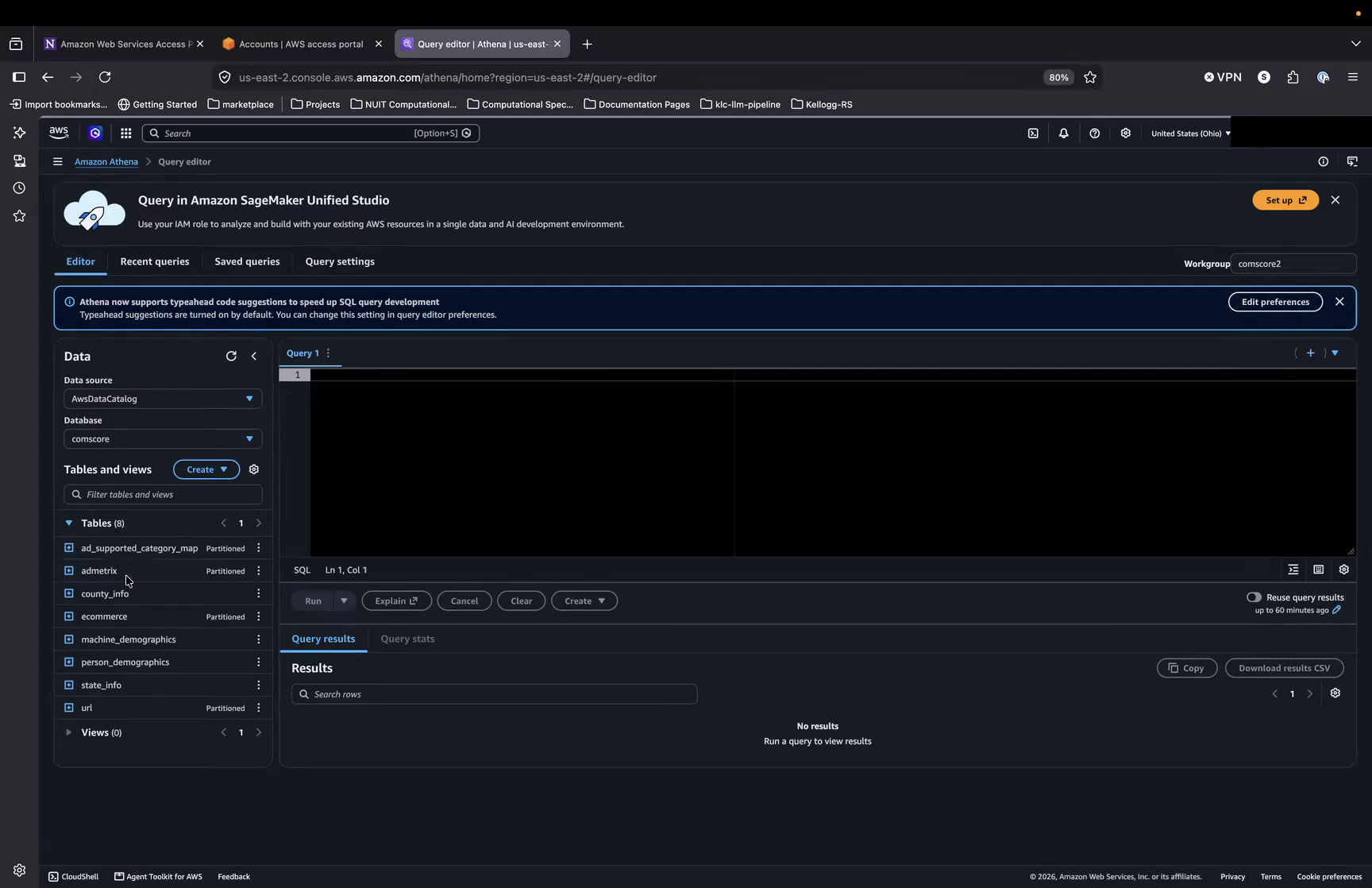
Right-click any table name in the left panel to access shortcuts such as Preview Table and Generate table DDL.
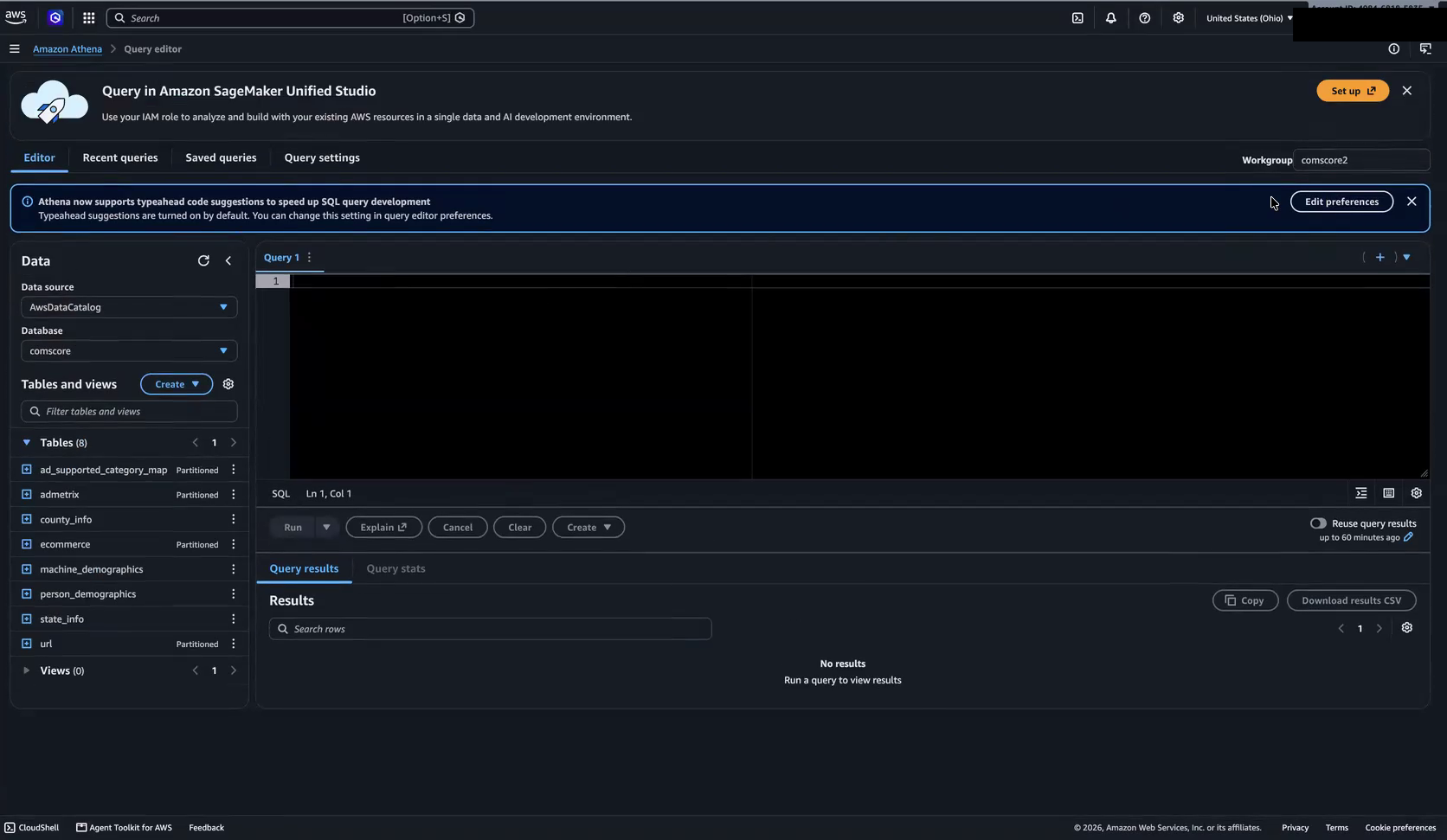
The Athena Query editor opens. The Workgroup (shown in the upper right of the editor) and Database (in the left panel) are set to the database you were granted access to. If either value is wrong, select the correct workgroup and database from the dropdown menus in the editor. The left panel lists all available tables.
Tip
Right-click any table name in the left panel to access shortcuts such as Preview Table (generates a SELECT * query with a 10-row limit) and Generate table DDL (shows the table schema). Preview Table still scans data — see Query Limits and Reducing Data Scanned before previewing large tables.
Screenshots: Navigating to Athena
1. Search for Athena
2. Athena Query editor
3. Table context menu
3. Query and Download Results#
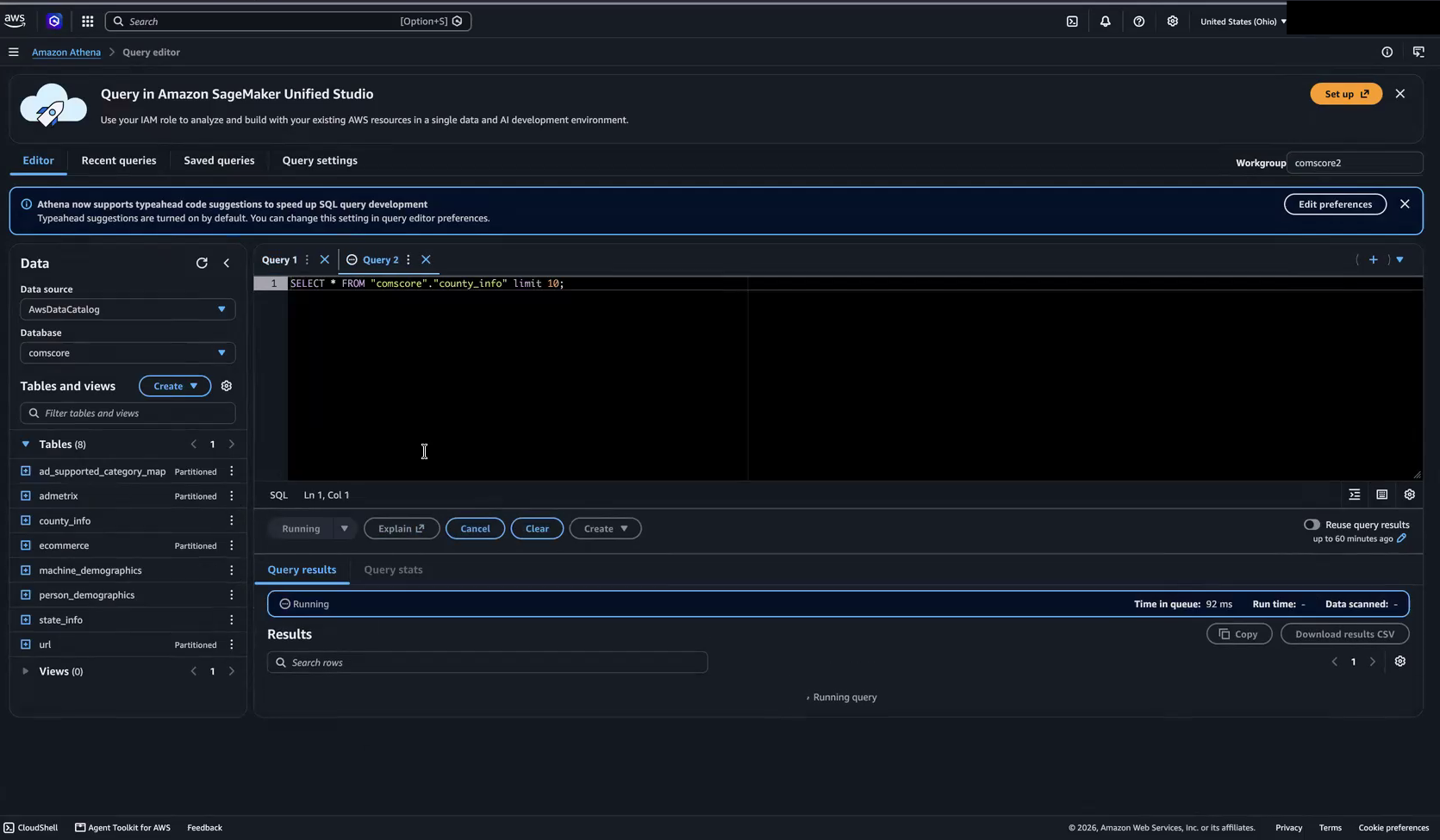
Type your SQL query in the editor and click Run. The status bar below the editor shows the query progress.
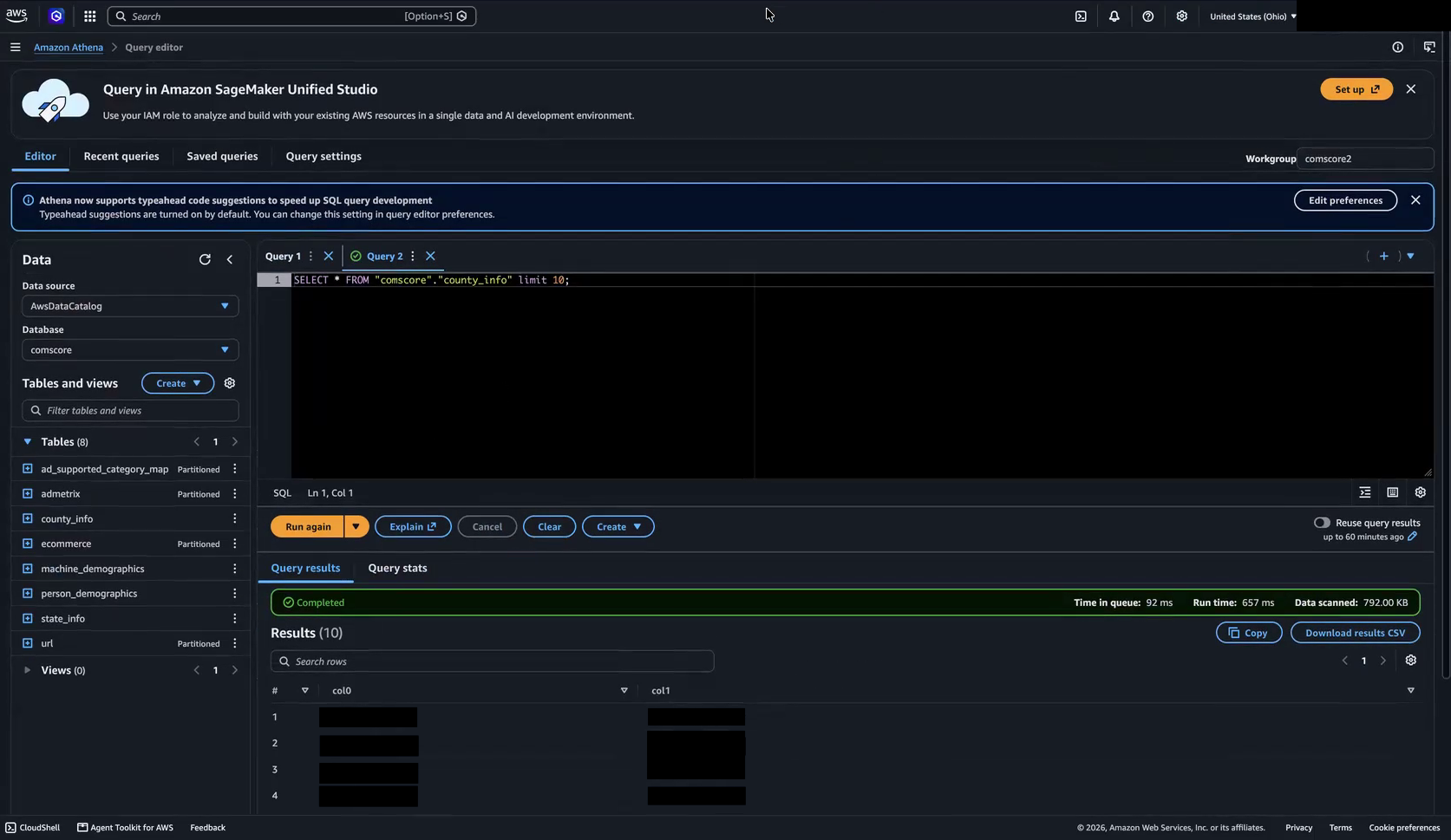
When the query completes, click Download results CSV in the Query results panel to save the output to your computer.
Screenshots: Querying and Downloading Results
1. Query running
2. Query results
Accessing via KLC#
Querying Athena from KLC uses Python and awswrangler. After you complete steps 1–3, run the Python example in step 4 to pull data and write a CSV on the cluster. If your analysis is in R or Stata, read that CSV in your script — do not connect to Athena directly from R or Stata.
Prerequisites:
A KLC account and an active terminal session on KLC
Access to a specific Athena database already granted by Kellogg Research Support
The
awscli/latestmodule on KLC, which provides AWS CLI 2.22.7 (aws configure ssorequires 2.9.0 or later)
Note
Where to run queries: Short interactive queries are fine on a KLC login node. Do not pull large result sets on a login node — see When to Use KLC Reserve for the 24-core policy and batch options. Use tmux to keep sessions alive after disconnecting.
1. Load the AWS CLI#
module load awscli/latest
Optionally confirm the version:
aws --version
2. Configure NetID Authentication#
KLC login nodes have no GUI browser. AWS CLI 2.22.0 and later also default to a PKCE authorization flow that cannot complete on a login node. Use aws configure sso --no-browser --use-device-code and enter the values below when prompted:
Prompt |
Value |
|---|---|
SSO session name |
|
SSO start URL |
|
SSO region |
|
SSO registration scopes |
Accept the default ( |
aws configure sso --no-browser --use-device-code
Note
--use-device-code is required on AWS CLI 2.22.0 and later. On AWS CLI older than 2.22.0, --use-device-code is not recognized; those versions already use the device-code flow, so --no-browser alone is enough.
To avoid passing the --use-device-code flag on every SSO command, add export AWS_CLI_SSO_RETRY_MODE=device-code to ~/.bashrc.
Copy the URL the CLI prints into a browser on your local machine, sign in with your NetID, and pass the Duo MFA challenge.
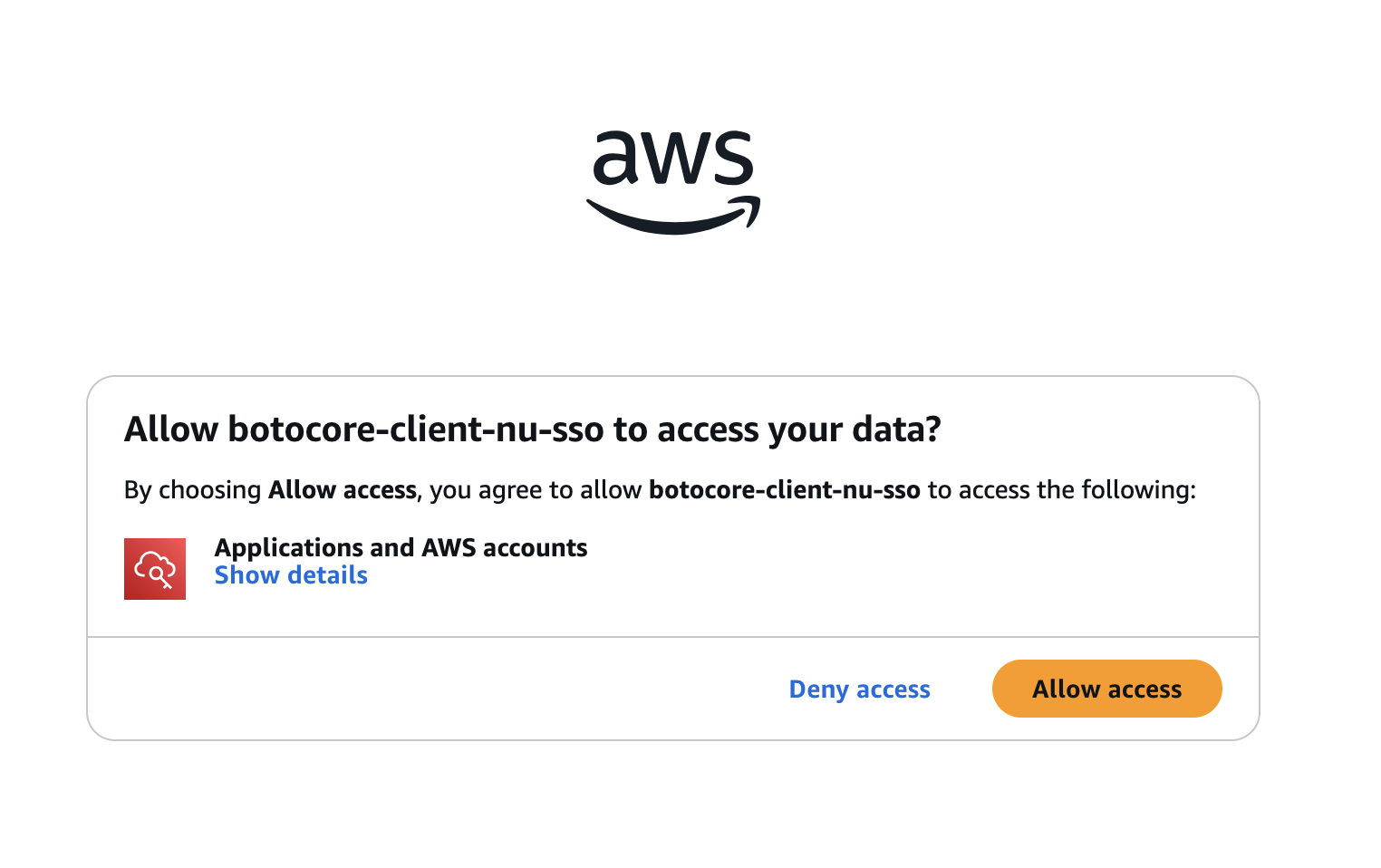
Choose Allow access when the browser asks to authorize
botocore-client-nu-sso.Back in the terminal, arrow-key to ksm-rch-data and press Enter. Do not select any other AWS account.
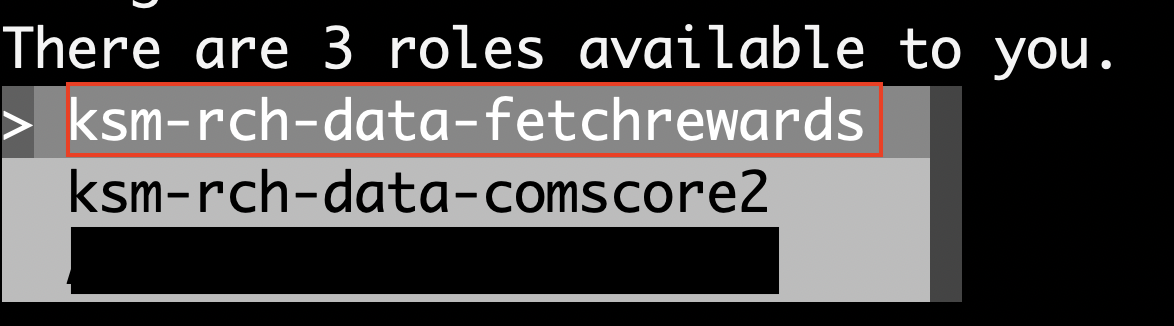
Select the role matching your database, for example
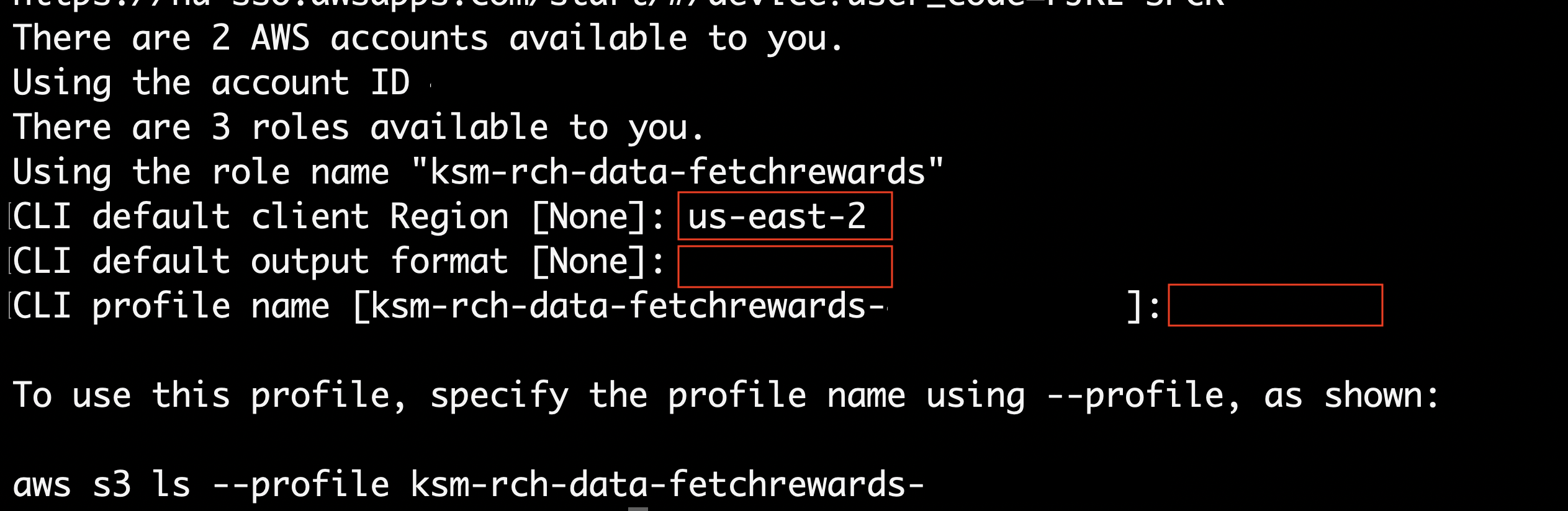
ksm-rch-data-fetchrewards.Enter
us-east-2for the default region, then press Enter to accept the defaults for output format and profile name. The default profile name isksm-rch-data-<database>-<account-id>.
Screenshots: Configuring NetID Authentication
2. Allow access
3. Select AWS account

4. Select role
5. CLI options
Warning
Note the exact profile name the CLI prints at the end of setup. You will pass this name to --profile in step 3 and to the profile variable in the Python script in step 4.
Tip
If you forget a profile name, run cat ~/.aws/config on KLC. Each [profile ...] block is one configured dataset access. Match the block’s sso_role_name (for example ksm-rch-data-comscore2) to your workgroup or dataset, then use the profile name from the section header in steps 3 and 4.
Tip
If you have access to multiple accounts or roles, copy the profile block that aws configure sso writes to ~/.aws/config for each additional account or role, reusing the same sso_session (nu-sso). You can then choose which profile to use for each AWS CLI command without re-authenticating.
Note
The default SSO session length is 4 hours. In future sessions, if you are not prompted to log in automatically when running an AWS CLI command, run the command below.
aws sso login --sso-session nu-sso --no-browser --use-device-code
For more details, see Configuring IAM Identity Center authentication with the AWS CLI .
3. Verify Access#
Verify your SSO profile works by listing accessible S3 buckets:
aws s3 ls --profile <account-profile>
Replace <account-profile> with the profile name from step 2 (for example, ksm-rch-data-comscore2-<account-id>). If you do not have the name handy, run cat ~/.aws/config and use the profile from the matching [profile ...] section.
4. Query with Python#
Note
R and Stata on KLC: We do not support connecting to Athena from R or Stata. Run the Python script below to query Athena and write a CSV on the cluster, then read that file in your R or Stata script (see Using the Result in R or Stata).
Install awswrangler#
Create a conda environment in your home directory with awswrangler . Run the eval and source lines in every new shell before mamba activate:
eval "$('/hpc/software/mamba/24.3.0/bin/conda' 'shell.bash' 'hook' 2> /dev/null)"
source "/hpc/software/mamba/24.3.0/etc/profile.d/mamba.sh"
mamba create --prefix=$HOME/aws-athena-env python awswrangler --yes
mamba activate $HOME/aws-athena-env
See Conda Environments on KLC for general environment guidance.
Map script values to your access#
Use the same workgroup and database you would select in the Athena Query editor. Set profile to the exact name from step 2, or look it up with cat ~/.aws/config as described above.
Script variable |
Where to find it |
Example (Fetch Rewards) |
|---|---|---|
|
Query editor, upper right; also the suffix after |
|
|
Query editor, left panel (often different from the workgroup name) |
|
|
Profile name from step 2; or |
|
|
Built in the script as |
|
Run a query#
Save the script below as athena_query.py, replace the three values at the top, and run it from an activated environment:
python athena_query.py
import uuid

import awswrangler as wr
import boto3

# Values from the mapping table above.
workgroup = "fetchrewards"
database = "fetchrewards"
profile = "ksm-rch-data-fetchrewards-<account-id>"

sql = """
SELECT partner_id, barcode, cleaned_barcode
FROM barcode_lookup
LIMIT 10
"""

session = boto3.Session(profile_name=profile, region_name="us-east-2")
s3_bucket = f"kdc-{workgroup}"
s3_prefix = f"queries/{workgroup}/unload/{uuid.uuid4()}"
s3_output = f"s3://{s3_bucket}/{s3_prefix}"

df = wr.athena.read_sql_query(
    sql,
    database=database,
    ctas_approach=False,
    unload_approach=True,
    s3_output=s3_output,
    workgroup=workgroup,
    keep_files=False,
    athena_cache_settings={
        "max_cache_seconds": 1000,
        "max_cache_query_inspections": 100,
        "max_remote_cache_entries": 100,
        "max_local_cache_entries": 100,
    },
    s3_additional_kwargs={"region": "us-east-2"},
    boto3_session=session,
)

output_csv = "barcode_lookup_sample.csv"
df.to_csv(output_csv, index=False)

print(df.head())
print(df.query_metadata["Statistics"]["DataScannedInBytes"])
print(f"Wrote {len(df)} rows to {output_csv}")
The table name and columns match the Fetch Rewards barcode_lookup table. Use the Query editor or Generate table DDL to confirm names for other tables in your database.
Note
The script uses Athena UNLOAD to stage results in S3, then loads them into a pandas DataFrame. For large result sets, iterate with chunksize in read_sql_query and run the job on KLC Reserve, not a login node.
Using the Result in R or Stata#
The Python script writes barcode_lookup_sample.csv in your current working directory. Change the output_csv variable in the script if you need a different path or filename. Then load the file in R or Stata:
module load R/4.5.1
df <- read.csv("barcode_lookup_sample.csv")
module load stata/17
import delimited "barcode_lookup_sample.csv", clear
Query Limits and Reducing Data Scanned#
Most Athena databases have a daily query limit of 2 TB of data scanned, whether you query from the AWS Console or from KLC. Contact rs@kellogg.northwestern.edu if you need this limit increased.
Athena charges by data scanned, not rows returned. After each query, check the Data scanned value in the Query editor results panel before running follow-up queries.
To stay under the limit:
Filter on partition columns (such as date or year) whenever the table schema supports it
Select only the columns you need instead of using
SELECT *Use Generate table DDL to inspect the schema before writing queries
Troubleshooting#
AWS CLI commands fail with an authentication or token error
If AWS CLI commands fail with an authentication or token error, your SSO session has expired. Run:
aws sso login --sso-session nu-sso --no-browser --use-device-code
aws configure sso or --no-browser is not recognized, or the SSO flow hangs
If the CLI reports that aws configure sso or --no-browser is not recognized, an older awscli module is loaded. Run module load awscli/latest and try again.
If the SSO flow hangs or reports a connection or callback error instead of printing a URL and code, device-code mode was not requested. Add --use-device-code to the command, or set AWS_CLI_SSO_RETRY_MODE=device-code in ~/.bashrc.
Your database does not appear under ksm-rch-data
If your database does not appear under ksm-rch-data in the AWS access portal, access has not been granted yet. Email rs@kellogg.northwestern.edu with the dataset name.
Athena returns no tables, or queries fail immediately
Athena queries fail or return no tables when the region is not US East (Ohio) (us-east-2). Confirm the region in the upper right of the AWS Console before opening the Query editor.
A Python awswrangler query fails with an authentication or permission error
If athena_query.py fails with an authentication or token error, your SSO session has expired. Run:
aws sso login --sso-session nu-sso --no-browser --use-device-code
If authentication succeeds for aws s3 ls but the Python script still fails, confirm profile in the script matches the profile name from step 2 exactly. Confirm workgroup and database match the Query editor — the database name is often different from the workgroup name.
Datasets on Athena#
The dataset pages below document a selected subset of datasets hosted on the Athena platform with documentation on this site.
Note
The datasets listed below are a selected subset with documentation on this site, not an exhaustive catalog. For an exhaustive list of datasets available to Kellogg researchers, see the Kellogg Research Support Datasets page .
For the full Kellogg Data Hosting overview, see Kellogg Data Hosting. For access requests or questions, see Getting Help.