
VS Code#
Visual Studio Code (VS Code) is a free code editor with strong support for remote development, making it a popular way to edit files and run code directly on KLC.
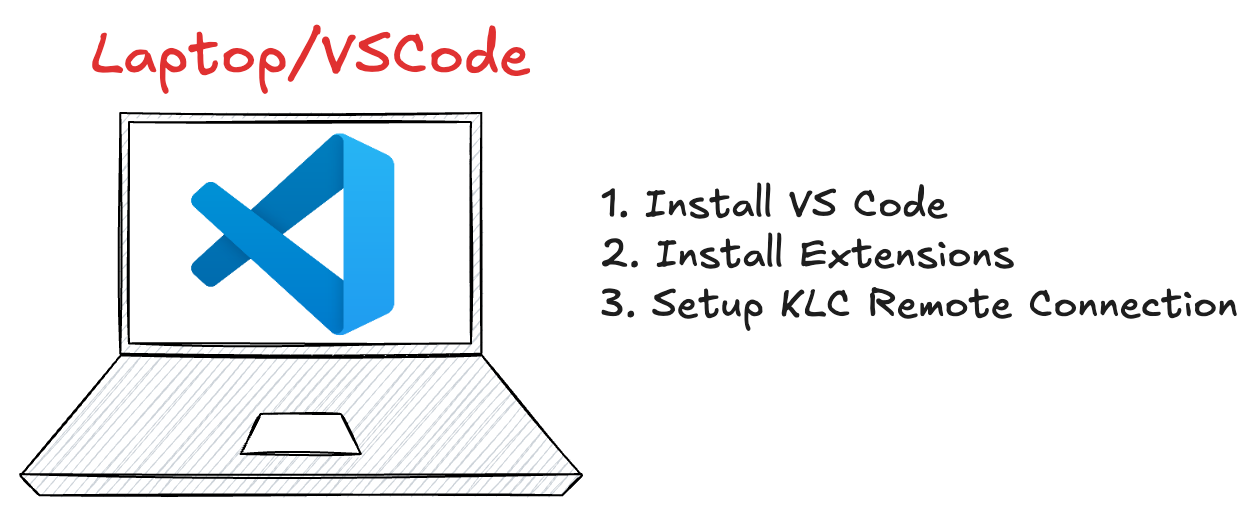
This page covers connecting to KLC over Remote-SSH. If you’d rather not install anything locally, KLC OnDemand’s VS Code Server gives you the same editor directly in your browser.
Essential Extensions#
Install these from the Extensions view (Ctrl+Shift+X / ⌘⇧X):
Remote - SSH (
ms-vscode-remote.remote-ssh) — connect to a remote machine like KLC and work with its files and terminal as if they were local.Remote Explorer (
ms-vscode.remote-explorer) — a graphical view of your SSH targets and remote sessions.Python (
ms-python.python) — code intelligence, linting, and debugging for Python.Jupyter (
ms-toolsai.jupyter) — open and run Jupyter Notebooks inside VS Code.GitHub Copilot (
github.copilot) — AI pair programmer that suggests code completions.GitHub Copilot Chat (
github.copilot-chat) — ask Copilot questions, get code explanations, or generate snippets via natural language.
Connecting to KLC#
Open the Command Palette (
Ctrl+Shift+P/⌘⇧P) and select Remote-SSH: Connect to Host.Select Add New SSH Host and enter:
ssh your-netid@klc0202.quest.northwestern.edu
VS Code opens a new window connected to that node. Use File → Open Folder to browse to your home directory or a Kellogg project directory.
Note
To skip typing your password on every connection, set up passwordless SSH login first.
Keyboard Shortcuts#
Action |
macOS |
Windows |
|---|---|---|
Activate Copilot inline chat |
|
|
Comment line |
|
|
Increase indent |
|
|
Decrease indent |
|
|
Go to file |
|
|
Switch tabs |
|
|
Save |
|
|
Close tab |
|
|
Open terminal |
|
|
Command palette |
|
|
Toggle sidebar |
|
|
Find in file |
|
|
Find across files |
|
|
Bonus#
tmux cheatsheet for managing sessions in the integrated terminal